Looking for a free AI code assistant? Compare 8 of the best for students and beginners in 2026: limits, pros, cons and which one to pick.
Learning to code is hard enough without paying for tools on top of it. A good AI code assistant can explain a confusing error in plain English, draft a function for you to study, and walk you through code you don’t understand. The best part is that several of them cost nothing.
The catch is that “free” means different things. Some AI coding assistants give you a monthly allowance, some are free only for students, and some are free software where you pay for the AI model behind it. This guide compares eight free options, with honest limits, pros, cons and a clear pick for each type of learner. For paid tools, see our guide to the best AI code assistants.
Free plans change often, so check each pricing page before you commit. Prices are in USD, and student offers usually need a school email (.edu in the US, .ac.uk in the UK).

1 – Best Free AI Code Assistants at a Glance
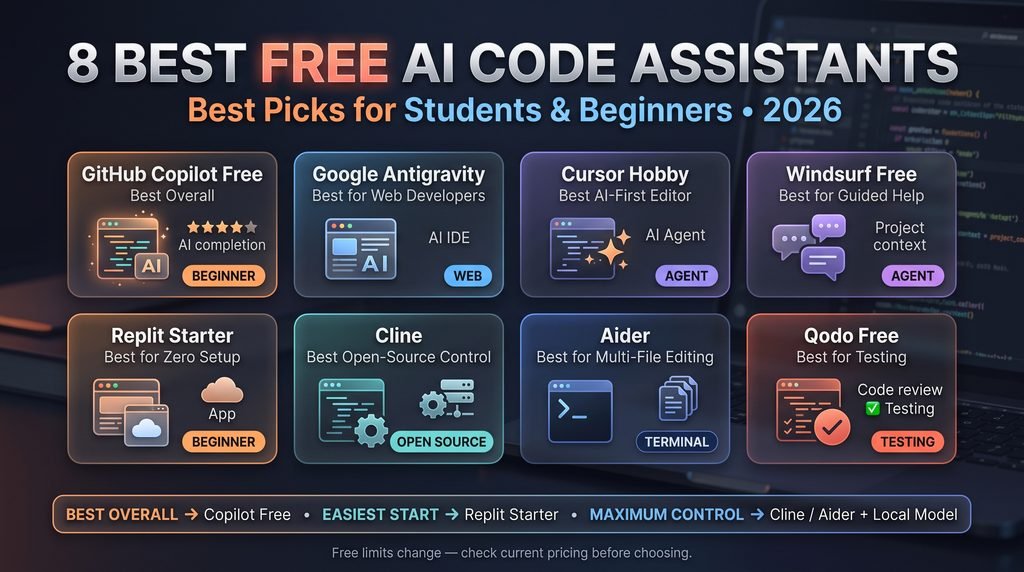
Whether you want an AI code generator that builds an app from a prompt or an in-editor helper that explains your errors, these eight tools cover both.
| Tool | Best for | What’s free | Works in | Beginner-friendly (1-5) |
|---|---|---|---|---|
| GitHub Copilot Free | Most beginners | Monthly completions and chat requests | VS Code, JetBrains, Visual Studio | 5 |
| Google Antigravity | Web developers | Free for individuals | Its own IDE and CLI | 4 |
| Cursor Hobby | Trying an AI-first editor | Limited agent requests and completions | Cursor editor | 4 |
| Windsurf Free | Guided debugging | Monthly prompt credits | Windsurf editor | 4 |
| Replit Starter | Zero setup | Free starter plan | Browser | 5 |
| Cline | Open-source control | Free extension, you supply the AI model | VS Code | 2 |
| Aider | Multi-file edits in the terminal | Free tool, you supply the AI model | Terminal | 2 |
| Qodo Free | Learning to test code | Monthly credits | VS Code, JetBrains | 3 |
Quick picks:
- Best overall: GitHub Copilot Free
- Best if you’ve never coded: Replit Starter
- Best at zero cost, forever: Cline or Aider with a local model
“Free” comes in three flavors. Free with limits (Copilot, Cursor, Windsurf, Qodo) is the most common. Free for students is a separate route that often unlocks paid features. Free software (Cline, Aider) costs nothing to install, but the AI model behind it may not.
Not sure where to start? Jump to the section on choosing the right free AI code assistant and find your match in 30 seconds.
1.1-AI Code Assistant Explained for Beginners
An AI code assistant is a tool that reads your code and plain-English instructions, then suggests, explains, fixes or writes code. Most work inside your editor and offer autocomplete, chat and, increasingly, agent features.
1.2-How an AI Code Assistant Works
Most tools work in one of three ways:
- Autocomplete: predicts the next line or block as you type.
- Chat: you ask something like “why is this loop never ending?” and get an explanation.
- Agent mode: you describe a goal (“add a login page”) and the tool edits multiple files, runs commands and tests its own work.
Free tiers typically include the first two and a small taste of the third. For a deeper breakdown, read our guide on AI code assistant vs AI coding agent.

1.3-AI Code Assistant vs AI Code Generator
An AI code generator turns a prompt into code, usually in one go (“build me a to-do app”). An AI code assistant does that too, but it also works inside your editor as you code: it autocompletes, explains errors and reviews your changes. Replit’s Agent and Antigravity sit closer to generators, while Copilot and Qodo behave more like assistants.
For beginners, an assistant usually teaches you more, because you stay in the loop instead of receiving a finished app you can’t explain.
1.4-Benefits for Students and Beginners
The biggest benefit isn’t speed. It’s having someone to ask. Beginners lose hours to problems an experienced developer would spot in seconds: a missing bracket, the wrong data type, a confusing stack trace. An assistant can translate TypeError: 'NoneType' object is not subscriptable into “your function returned nothing, and you’re trying to read from it.”
It’s also good at boilerplate (repetitive setup code) and at generating unit tests, which many courses teach late but employers expect early.
1.5-Risks and Learning Pitfalls to Avoid
AI code can look right and be wrong. A Sonar developer survey, as cited by Augment Code, found that 67% of developers agree AI often produces code that looks correct but isn’t reliable. Here’s a small example:
def invoice_total(subtotal, discount=0.10, tax_rate=0.20):
    return subtotal - discount + subtotal * tax_rate
It runs without errors. But with a $200 subtotal it returns $239.90, when the right answer is $216. It subtracts 0.10 as if it were ten cents rather than ten percent, and it taxes the pre-discount amount. A beginner who doesn’t check the output would never notice.
Over-reliance slows learning. If the assistant writes everything, you’ll finish assignments without understanding them. Use it to explain and check your work, not to replace your thinking. The tips section below shows how.

2 – Our Criteria for the Best Free AI Code Assistants
2.1-Selection Criteria
Each tool had to meet six criteria:
- A free tier you can genuinely use, not a 7-day trial of an AI coding assistant
- Easy setup for someone who has never configured a developer tool
- Support for popular languages (Python, JavaScript) and common editors
- Clear explanations, not just code dumps
- Reasonable privacy practices
- Active development
2.2-What “Free” Really Means
2.2.1-Free Tier With Monthly Limits
You get a capped number of completions, chat messages or credits each month. Copilot Free, Cursor Hobby, Windsurf Free and Qodo work this way. When the allowance runs out, you wait for the reset or upgrade.
2.2.2-Free for Students
Verified students can often access paid features at no cost. GitHub’s student program and JetBrains’ student licenses are the best known.
2.2.3-Free and Open Source With Paid Models
Cline and Aider cost nothing to install. They connect to a model through an API key, and the provider bills you per use. The exception is a local model on your own computer, which costs nothing but needs a reasonably capable machine.

3 – The 8 Best Free AI Code Assistants in 2026
3.1- GitHub Copilot Free: Best Overall for Most Beginners
What You Get for Free
Code completions and chat inside your editor. Sources from late 2025 put the allowance at roughly 2,000 completions and 50 chat or agent requests a month. GitHub moved Copilot to usage-based billing in mid-2026, so confirm current limits on GitHub’s plans page.
Best For
Beginners who already use VS Code or a JetBrains editor.
Pros and Cons
Pros
- Works inside editors you probably already use
- Huge community, so almost every question has a tutorial
- Verified students and open-source maintainers can often get paid-tier access free
Cons
- Monthly limits can run out mid-project
- Less capable than agent-first tools for big multi-file changes
How to Get Started
- Create a free GitHub account.
- Install VS Code and the GitHub Copilot extension.
- Type a comment like
# function that checks if a word is a palindromeand see what it suggests. - Open Copilot Chat and ask it to explain what it wrote.
Students should apply for the GitHub Student Developer Pack first, since it can unlock more than the free tier.
3.2- Google Antigravity: Best for Web Developers
What You Get for Free
Antigravity is Google’s AI-native IDE and is free for individual developers. It replaced the free individual tier of Gemini Code Assist in June 2026, so older tutorials about that tool may be out of date.
Best For
Beginners building websites and web apps.
Pros and Cons
Pros
- It can “see” your running app, so you can show it a screenshot of a layout bug and ask for a fix
- It can click through your site to test it
- Free for individuals
Cons
- Newer than the alternatives, so fewer tutorials exist
- Organization pricing isn’t published
How to Get Started
- Download Antigravity from Google’s official site and sign in.
- Open a small HTML/CSS project.
- Ask: “The button on the mobile layout overlaps the text. Fix it and explain what was wrong.”
3.3- Cursor Hobby Plan: Best AI-First Editor
What You Get for Free
A limited number of agent requests and completions. Paid plans start at about $20 a month, so treat Hobby as a taster.
Best For
Beginners who want to try an AI-first editor before paying.
Pros and Cons
Pros
- Built on VS Code, so it feels familiar
- Strong at changing several files from one instruction
- Easy to switch models on paid plans
Cons
- Free limits are tight if you use agent mode heavily
- It’s easy to accept big changes you don’t understand
How to Get Started
- Download Cursor and import your VS Code settings.
- Select a function and ask chat to explain it line by line.
- Only then try agent mode, and read every change before accepting it.
When you’re ready to compare paid plans, see our GitHub Copilot vs Cursor vs Claude Code comparison and our AI code assistant pricing guide.
3.4- Windsurf Free Plan: Best for Learning With Guided Help
What You Get for Free
Around 25 prompt credits a month at the time of writing. That’s modest, so check the current number. Its assistant, Cascade, keeps context across your project.
Best For
Beginners who want to know why something broke, not just what to change.
Pros and Cons
Pros
- Cascade can trace a bug across files and explain the cause
- Easy settings import from VS Code or Cursor
- Conversational style
Cons
- Credits disappear fast if you ask many small questions
- Natural-language commands sometimes need rephrasing
How to Get Started
- Download Windsurf and sign up for the free plan.
- Save credits by asking one detailed question instead of five vague ones, for example: “This Flask route returns a 500 error when the form is empty. Why, and how do I handle it?”

3.5- Replit Starter: Best for Complete Beginners With No Setup
What You Get for Free
Replit runs in your browser and its Starter plan is free. Limits on the free plan have changed over time, so check Replit’s pricing page for the current rules. The paid Core plan is around $20 a month.
Replit’s Agent works like an AI code generator: describe the app and it builds a first version.
Best For
True beginners, Chromebook users, and anyone who doesn’t want to install anything.
Pros and Cons
Pros
- Nothing to download or configure
- The Agent can build a working app from a plain-English description
- Hosting and deployment are built in
Cons
- Agent-built projects can break when you ask for complex changes
- AI usage costs can climb on paid plans
How to Get Started
- Sign up at replit.com.
- Describe a project: “A quiz app that asks 5 geography questions and shows my score.”
- Run it, then ask the assistant to explain how the scoring works.
- Use checkpoints before big changes so you can roll back.
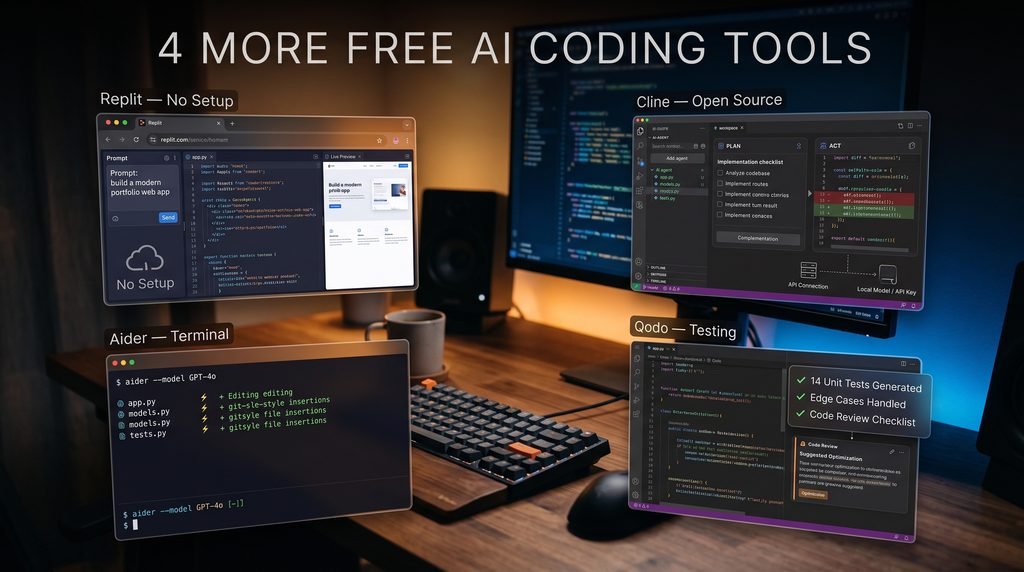
3.6- Cline: Best Free Open-Source Option Inside VS Code
What You Get for Free
A free, open-source VS Code extension with a Plan mode (it lays out what it intends to do) and an Act mode (it makes the changes). The AI model isn’t automatically free: you connect your own API key and pay the provider per use, or run a local model at no cost.
Best For
Slightly more technical beginners who don’t mind setup.
Pros and Cons
Pros
- No subscription or vendor lock-in
- Plan mode shows its reasoning before touching your files
- Code stays local if you use a local model
Cons
- More setup than the other tools
- API costs can surprise you if you use a paid model heavily
How to Get Started
- Install the Cline extension in VS Code.
- Choose a model provider or set up a local model.
- Start in Plan mode and read the plan before approving anything.
- Set a spending cap with your API provider first.
For more tools like this, see our guide to open-source AI code assistants.
3.7- Aider: Best Free Terminal Tool for Multi-File Edits
What You Get for Free
An open-source command-line tool. Give it files and an instruction like “refactor these two files to use dependency injection” and it edits them directly. Like Cline, you bring your own API key or local model.
Best For
Learners who are comfortable in the terminal, or keen to get there.
Pros and Cons
Pros
- Free software with an active community
- Handles multi-file changes well
- You pay only for the model usage you consume
Cons
- No visual interface, which can feel intimidating
- You must review every change it makes
How to Get Started
- Install Aider following its official documentation.
- Add your API key or connect a local model.
- Run it inside a Git repository so every change can be undone.
- Start small: ask it to add comments to one file.
3.8- Qodo Free Plan: Best for Learning to Write Tests
What You Get for Free
Around 250 credits a month at the time of writing. It works in VS Code and JetBrains and focuses on tests and code review.
Best For
Students who want to build the testing habit early.
Pros and Cons
Pros
- Generates unit tests quickly, including edge cases you might miss
- Explains what a function does and where it might break
- Works well alongside another assistant
Cons
- Focused on testing and review, not general coding help
- Some users report slowdowns on larger projects
How to Get Started
- Install the Qodo extension in VS Code or a JetBrains IDE.
- Select a function you wrote and ask for tests.
- Read each test and work out why it exists.
3.9-Honorable Mentions
A few other AI coding assistants worth a look if the main eight don’t suit you:
- JetBrains AI (free tier): good if you already use PyCharm or IntelliJ.
- CodeGeeX: free and open source, with support for 20+ languages.
- Amazon Q Developer and Kiro: free access has been changing, so check AWS before relying on either.
Paid tools like Claude Code need a paid plan, so they sit outside this list.
4 – Free AI Coding Assistant Comparison Table
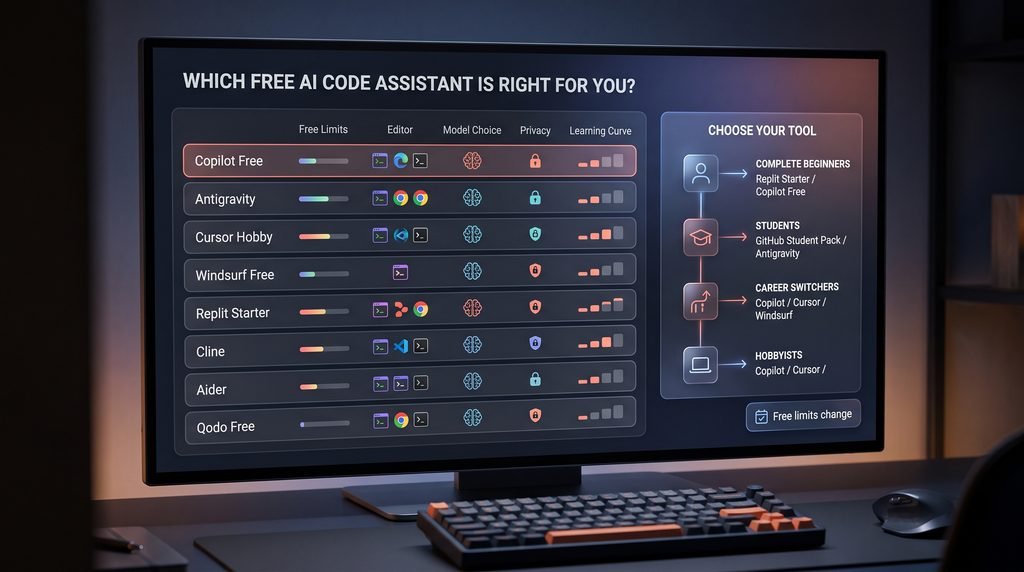
| Tool | Free limits | Editor | Model choice | Privacy note | Learning curve |
|---|---|---|---|---|---|
| Copilot Free | Monthly completions and chat | VS Code, JetBrains | Limited | Check data settings | Low |
| Antigravity | Free for individuals | Own IDE | Gemini-based | Check Google’s terms | Low-medium |
| Cursor Hobby | Limited agent requests | Cursor | Limited on free | Privacy mode available | Low |
| Windsurf Free | Monthly credits | Windsurf | Limited | Check settings | Low |
| Replit Starter | Free starter plan | Browser | Managed | Projects may be public | Very low |
| Cline | Free tool, pay for API | VS Code | Any | Local with a local model | Medium-high |
| Aider | Free tool, pay for API | Terminal | Any | Local with a local model | High |
| Qodo Free | Monthly credits | VS Code, JetBrains | Limited | Check settings | Medium |
Free limits change every few months. Subscribe to our monthly AI Tool Update to hear about new free tiers, price changes and what’s worth switching to.
4.1-How to Choose the Right Free AI Code Assistant
For Complete Beginners
Start with Replit Starter for zero setup, or Copilot Free if you’re ready to install VS Code.
For Students
Apply for the GitHub Student Developer Pack and check JetBrains’ student license. Use Antigravity as a free backup. US students can usually verify with a .edu address, and UK students should have their .ac.uk email ready.
For Career Switchers and Hobbyists
Install Copilot Free, then try Cursor or Windsurf’s free plan for a week each. The best tool is the one that fits how you work.
For Zero Cost and Full Control
Use Cline or Aider with a local model. Expect more setup and a capable computer, but no monthly bill.
For Privacy-Conscious Users
Read each tool’s data-use settings, avoid pasting private code, and use a local model for anything sensitive.
4.2-Tips for Getting the Most From a Free AI Code Assistant
Write Better Prompts
Be Specific About Language and Goal
- Weak prompt: “Fix my code.”
- Strong prompt: “This Python function should return the total after a 10% discount and 20% tax. With a subtotal of 200 it returns 239.9 instead of 216. Find the bug and explain it.”
The strong prompt gives the language, intent, expected result and actual result. That’s what produces a useful answer.
Ask for Explanations, Not Just Code
Add “explain each line like I’m new to Python” and you get a mini-lesson instead of a code dump. For more debugging prompts, see our guide to AI code assistants for debugging.
4.3-Stretch Your Free Limits
Don’t spend credits on what your editor already does. Save them for tricky bugs and code you don’t understand. Batch your questions, and when one allowance runs out, use another tool’s free tier for the rest of the month.
4.4-Review and Test Every Output
Run it. Read it. Try inputs that should break it. Don’t treat any AI code generator as a finished product. In the invoice example, one test with a known answer would have exposed the bug immediately.
Use AI to Learn, Not to Skip Learning
Write your own attempt first, then ask the assistant to review it: “What would you change and why?” Then ask for a similar exercise and try it without help.
4.5-Safety of Free AI Code Assistants
Free AI code assistants are generally safe if you’re careful.
- Privacy: free tiers may handle data differently from business plans. Read the data-use policy and turn off training on your code if the option exists.
- Secrets: never paste passwords, API keys or customer data into any assistant.
- Licensing: generated code can resemble existing open-source code. Check your school’s AI policy for coursework, and review licensing for anything you publish or sell.
- Accuracy: treat every suggestion as a draft from a smart but sometimes overconfident colleague.

Final Verdict: Which Free AI Code Assistant to Pick
The best free AI code assistant is the one you’ll actually use every week. If you only try one, make it GitHub Copilot Free. If you’ve never written code, start with Replit Starter. If you’re building websites, try Antigravity. If you want full control at no cost, pair Cline or Aider with a local model.
Whichever AI coding assistant you pick, review every change it makes. Start free, and upgrade only when you consistently hit your limits.
Ready to go beyond the free tier? Compare paid options in our GitHub Copilot vs Cursor vs Claude Code guide, or see our full list of the best AI code assistants.
Frequently Asked Questions About Free AI Code Assistants
1-What is the best free AI code assistant?
GitHub Copilot Free is the best pick for most beginners because it works in popular editors and is easy to set up. If you want zero installation, try Replit Starter.
2-Is GitHub Copilot free for students?
Yes, verified students can often get paid Copilot features free through GitHub’s student program. A limited free plan is also open to everyone, so check GitHub’s current requirements.
3-Can I use an AI coding assistant without paying?
Yes, Copilot Free, Windsurf Free, Cursor Hobby, Qodo Free, Replit Starter and Antigravity all have free plans. Cline and Aider are free software, but you pay for the AI model unless you run a local one.
4-What is the best free AI code assistant for beginners?
Replit Starter is the easiest because it runs in your browser with no setup. Copilot Free is a close second if you’re ready to use VS Code.
5-Are free AI code assistants as good as paid ones?
For learning and small projects, a free plan is usually enough. Paid plans give you higher limits and stronger models, which you notice mainly on larger projects..